
SlowBooks Pro 2.32 beta. Bring your AI.
One button, Connect to AI assistant, connects Claude, Grok or another assistant to your books, with nothing to install and no account, email or password.
This is 2.32.0 beta 2, a pre-release for people willing to try it before everyone else. The final 2.32.0 is planned for December 1, 2026. Books not yet opened in a beta: copy them before you install.
New in beta 2
- One AI assistant connection now reaches every company you add to it. Connect once. Then open each other company and, in its Settings → Connections → AI assistants, press Add (the button names the company). Each company gets its own bookkeeper token, so every change the assistant makes is in that company’s own audit log. The assistant names which company’s books it is working in on every call. A connection made in beta 1 keeps working, with nothing to redo. How it works.
- Long words stay on the printed page. A web address, a tracking number or a name typed with no spaces now breaks inside the word instead of pushing Qty, Rate, Amount and the totals off the paper.
Coming from beta 1? Install beta 2 over it. Your books and your connection carry over. If the assistant stops answering after the update, the person who connected it is no longer an administrator there: an administrator presses Add again.
-
Windows
64-bit Windows 10 or 11. The installer is code-signed and self-contained: run it over the version you have, and your companies and settings are kept.
-
macOS
Apple silicon, macOS 15 or newer. Signed with an Apple Developer ID and notarized by Apple: open the DMG and drag SlowBooks Pro to Applications.
-
Linux, Docker, Intel Macs
There is no installer for these: run the beta from its tag in the source. Copy your books first, as on Windows and a Mac.
If you already run SlowBooks Pro from source, use the folder you already have. A fresh clone makes a new
.envfile with new keys, and your saved passwords are tied to the keys in the.envfile you already have.git fetch --tags git checkout v2.32.0-beta.2Then install what the beta needs (
pip install -r requirements.txt) and start SlowBooks Pro the way you do now. Do not run the install guide’scp .env.example .envagain: it replaces your.envfile. If your books are in PostgreSQL, read Server Edition, Docker and PostgreSQL first.If you are trying SlowBooks Pro for the first time, make a fresh clone:
git clone https://github.com/VonHoltenCodes/SlowBooks-Pro-2026.git
cd SlowBooks-Pro-2026
git checkout v2.32.0-beta.2
With a fresh clone, then follow the Docker or the native steps in the install guide; this checkout takes the place of its
git clone.
The files are on the v2.32.0-beta.2 pre-release page on GitHub. If a download answers “Not Found”, that beta has not been posted yet.
Connect to AI assistant
Under Settings → Connections → AI assistants there is one button, Connect to AI assistant. It connects Claude (on the web, the desktop or a phone), Grok, or another assistant that adds a custom connector. There is no second program to install, and no account, email or password.
Your books stay where they are. SlowBooks Pro dials out to the free SlowBooks relay, with no port opened, and the assistant reaches the books through that connection: on the desktop only while SlowBooks Pro is open, on Server Edition while the server runs.
-
Press Connect to AI assistant
In SlowBooks Pro, signed in as an administrator, open Settings → Connections → AI assistants and press the button.
SlowBooks Pro, Settings → Connections → AI assistants. -
Add the address in your assistant
In Claude, Grok or another assistant, add a custom connector with this address. The name is yours to choose.
https://relay.sbplive.com/mcp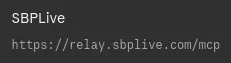
Claude's Add connector dialog, with a name and the address in. -
Type the one-time sign-in code
When the assistant asks, press Show a sign-in code in SlowBooks Pro and type the code it shows. Only someone at the books can approve the connection. A code works once, for ten minutes.

SlowBooks Pro, after Show a sign-in code. This code is made up.

What keeps it safe
- The audit log
- Every change the assistant makes is in that company’s audit log under its own name,
token:AI assistant (relay). - A bookkeeper token
- The assistant works through a bookkeeper API token. SlowBooks Pro checks each request as it would a person’s.
- It asks first
- It is told to ask before it creates a customer, vendor, item, account or document with little on it, never to invent values, and to say what it left blank.
- Disconnect
- Disconnect the AI assistant turns off each company’s token and has the relay delete its record of these books. An administrator of one company can also take that company alone off the connection.
Assistants make mistakes: review what yours entered. The relay is free and comes with no guarantee; read the terms and the privacy policy before you connect. Would you rather nothing passed through the relay? SlowBooks Switchboard runs on your own computer instead.
Before you install
This is for books not yet opened in a beta. Books that beta 1 has opened are already upgraded, and beta 2 adds no upgrade step of its own: install beta 2 over beta 1. If you copied the folder before beta 1, that copy is still the way back to 2.31.14, as described below; anything entered since is not in it.
Starting the beta upgrades your books, and 2.31.14 cannot open a company once the beta has upgraded it. The beta does not ask first. When it starts, it opens the company you used last and upgrades it before the sign-in page appears (an encrypted company is upgraded when you unlock it). Any other company is upgraded the first time you open it in the beta. On Windows, by our reading of the installer, its last page starts SlowBooks Pro unless you clear the Launch SlowBooks Pro 2026 box.
So do two things first, in this order: make a backup of each company, then copy the whole SlowBooksPro folder. The folder copy is the way back to 2.31.14.
First make a backup of each company
In the version you have now, open each company, go to Settings → Backups → Backup / Restore and press Create Backup. Do this before you copy the folder, so the folder copy carries the backups too. A backup made after you copied the folder is not in your copy. The beta can restore such a backup. 2.31.14 will not restore a backup made by the beta, and a backup alone is not a practical way back to 2.31.14. The folder copy is.
Then copy your books, before you run the beta installer
- Close SlowBooks Pro and wait a few seconds. On Windows, if Task Manager still lists SlowBooksPro, end it there. Do not copy while it is open: in our test on Linux, some copies made while it was working were damaged, and one of them still opened and looked right at first.
-
Find the SlowBooksPro folder.
- Windows: paste
%LOCALAPPDATA%into the File Explorer address bar and press Enter. The folder is named SlowBooksPro. - Mac: in Finder choose Go, then Go to Folder, and paste
~/Library/Application Support. The folder is named SlowBooksPro. - Linux, from source, started with
python3 desktop_launcher.py: the folder is.slowbooksproin your home folder. Also copy the.envfile in the source folder you run SlowBooks Pro from. (On a Mac run from source the same way, the folder is the Mac one above, and the.envfile is in the source folder too.) - Server Edition, Docker, or a PostgreSQL database: your books are not in this folder. Read Server Edition, Docker and PostgreSQL below instead.
- Windows: paste
-
Copy that whole folder (Copy, not
Cut) to a place outside it, such as a USB drive or
a new folder on this computer, and name the copy
“SlowBooksPro before beta”. On Windows,
Documents is often kept in OneDrive, which would put
your books and their keys in the cloud and may leave
the copy only in the cloud when you need it back, so
pick a folder that OneDrive does not sync. Do not open
the folder and pick files. Each company file has
partner files beside it that can hold your latest
entries, and the
.envfile holds the keys for your saved passwords. On a Mac, Finder hides the.envfile because its name starts with a dot; copying the whole folder still carries it. - Leave that copy alone. Never open it with SlowBooks Pro, and do not go back into SlowBooks Pro to enter more before you install the beta: anything entered after the copy is not in it.
If a company is encrypted, keep its recovery key as well. In our test on Linux the copied folder opened with the administrator’s sign-in and with the recovery key, and needed nothing else from the computer. In our tests on Windows and a Mac, the encrypted company in the put-back folder opened again from the administrator’s password and from the recovery key, on the same computer. There a script did the unlock the same way the app does; nobody typed them into the window.
To go back to 2.31.14
- Close the beta, the way you closed SlowBooks Pro before you made the copy.
-
Put 2.31.14 back, over the
beta. It is on the
v2.31.14 release page.
On Windows, run the 2.31.14 installer; if it starts
SlowBooks Pro, close it. On a Mac, open the 2.31.14
disk image, drag SlowBooks Pro onto Applications and
choose Replace; it does not start by itself. On Linux
from source, run
git checkout v2.31.14in the source folder that has your original.env. 2.31.14 cannot open the upgraded companies, so do not use it before the next two steps. In our tests, started on the upgraded folder, it could not open them, and its log gave the error “Can’t locate revision identified by ‘c1128e5a7d0f’”. We saw that error only in the log; nobody looked at its window, where by our reading of the program it appears under the company list. On Windows, if Task Manager still lists SlowBooksPro, end it there before you rename the folder. On a Mac, if SlowBooks Pro is still in the Dock, quit it (or use Force Quit) before you rename the folder. - Rename the SlowBooksPro folder (the upgraded one, in the place where you found it when you made the copy) to “SlowBooksPro beta”. Rename it; do not paste your copy into it.
-
Copy your “SlowBooksPro before
beta” folder (Copy, not Cut) and paste
it beside “SlowBooksPro beta”, in that
same place:
%LOCALAPPDATA%on Windows, Application Support on a Mac, your home folder on Linux. Name the pasted folder exactly SlowBooksPro (on Linux,.slowbookspro). Keep the original copy where it is. From source, also check that the.envfile in your source folder is still the one you copied; if it is not, put your copy of it back there. - Start SlowBooks Pro.
Your books are then as they were when you made the copy. Anything you entered in the beta is not in the copy and does not come back. Do not start the beta on a folder you have put back: it upgrades the company you used last again at once, and you would need your copy a second time.
If the beta has already started without a copy, the companies it has opened stay in the beta: we have no way to take them back to 2.31.14. A company the beta has not opened still opens in 2.31.14, so make the copy now, with the beta closed, before you open another one.
What we have tested, and what we have not
We ran this round trip with beta 1, twice on Linux, from the source of both versions, with made-up companies: inventory, service-only and encrypted, with invoices, payments, a credit memo, deposits, bills and a sales receipt. After the copy went back, 2.31.14 opened every company with every report and list the same as before. We then ran it once with beta 1’s Windows installer on Windows 11 and once with beta 1’s Mac app on an Apple silicon Mac, with made-up companies that included an encrypted company, an employee with a direct-deposit account and an attachment, and on the Mac also a pay run and a saved email password. There, after the copy went back, 2.31.14 opened each test company with the same figures as before the beta. On all three, beta 1 later upgraded the same folder again without error. On Windows and the Mac, the folder was where this page says.
On Windows and the Mac a script did every step, not a person at the screen. The Windows installer ran without showing its pages, SlowBooks Pro was closed by a command rather than from its window, the Mac app was replaced by a command rather than dragged onto Applications, folders were copied and renamed by commands rather than in File Explorer or Finder, and nobody looked at the SlowBooks Pro window. So what the Windows installer’s last page shows, and the words SlowBooks Pro shows in its window along the way, are still read from the program, not seen. We have not tried the way back with the Windows portable .zip. The test companies were small. If your books matter, try the beta on a computer that does not hold them.
Server Edition, Docker and PostgreSQL
We have not run the upgrade or the way back on any of these. What follows is read from the program, the installer and the guides.
Server Edition upgrades every company in
its list when it starts, and the installer starts the
server again by itself when it finishes, with no box to
clear. So stop the server and copy its folder,
C:\ProgramData\SlowBooksPro, before you run
the beta installer.
Docker, and a native install set up with the
install guide’s PostgreSQL steps, keep the
books in a PostgreSQL database and not in a folder: take
a database dump before you upgrade, as
the operations guide
describes, and keep your .env file. Docker
upgrades the database by itself when the beta’s
container starts, so take the dump before that. A native
install upgrades it with the install guide’s
alembic upgrade head step.
If you would rather not upgrade the books you depend on yet, install the beta on a computer that does not hold them, and press Try a sample company on the Companies page or start a new company there.
What else is new in 2.32
- The Fast Rack. Choose and order up to eight buttons for the top bar, from every page and every new-document form. It follows your sign-in to any computer.
- Books Check, a new report: every subledger tied to its control account, PASS or the difference with the documents behind it, and a dashboard card that says whether the books agree.
- Activity on every document, job, customer and vendor: what was made, edited, voided, emailed, printed, attached or applied, who did it and when.
- Sales tax exemption on the job. An exempt job holds its certificate, estimates, invoices and sales receipts have a Sales tax exempt switch, and the Sales Tax report lists exempt sales by reason.
- Make Deposits takes lines for money that was never invoiced (a reimbursement, a refund, a rebate), each to its own account, and deposits print onto the bank’s pre-printed deposit slips.
- Bank feeds. A Memo on each To review line, tick lines and Add selected, and Receive payment… or Pay bills… straight from a feed line to settle open invoices or bills.
- Outgoing email now verifies the mail server’s security certificate before it sends your password or any mail. A server with a self-signed, expired or mismatched certificate stops accepting mail from SlowBooks Pro until its certificate is fixed.
Betas do not update themselves
The app’s update notice follows the latest full release, so a beta is offered neither the next beta nor the final 2.32.0. We email each new beta, and the final release, to the people we invited; install it over the beta you have.
Tell us what you find
Email support@slowbookspro.com, or open an issue on GitHub if you have an account there.
- Say it is 2.32.0 beta 2, and copy the version line from About:
2.32.0+and twelve characters, which tell one build from the next. - Your computer (Windows, macOS or Linux, and which version) and how you run it: the desktop app, Server Edition or Docker.
- What happened, what you expected instead, and the steps that got you there. A screenshot helps.
Please don’t send your company file or a backup unless we ask for one, and never a sign-in code or an API token.
Checksums
Each build publishes the SHA-256 of its files: SHA256SUMS.windows and SHA256SUMS.macos. Compare the line for your file with what your computer reports:
# Windows
certutil -hashfile SlowBooksPro-Setup-x64.exe SHA256

# macOS
shasum -a 256 SlowBooksPro-macos-arm64.dmg