
Connect an AI assistant to SlowBooks Pro
Connect to AI assistant lets Claude, Grok or another assistant that adds a custom connector work your SlowBooks Pro books: look things up, run reports, and enter the daily books, within the permissions you give it. There is nothing else to install, and no account, email or password. Your books stay on your computer; SlowBooks Pro dials out to the free SlowBooks relay, and the assistant reaches the books through that connection only while you allow it.
The connector address is:
https://relay.sbplive.com/mcpOne connection can reach several companies. You connect in one company; an administrator of each other company adds it there with Add. A company that is not added stays out of the assistant’s reach. See Several companies.
Would you rather nothing passed through the relay? SlowBooks Switchboard is a small free program that runs on your own computer, for Claude Desktop and Claude Code.
What you need
- SlowBooks Pro 2.32.0 or later, and an administrator's sign-in to it. The Connect to AI assistant button is in Settings → Connections, under AI assistants.
- An assistant that takes a custom connector (a remote MCP server):
- Claude: Anthropic says custom connectors are available on its Free, Pro, Max, Ultra, Team and Enterprise plans, in Claude on the web and Claude Desktop, and that a Free plan can have one custom connector. On a Team or Enterprise plan, an owner adds the connector for the organization first.
- Grok: xAI says connectors are available to all Grok users. On a Business or Enterprise plan, a team admin provisions a connector before members can use it.
- Plans and their limits change. Check your plan with Anthropic or xAI if the steps below do not match what you see.
- SlowBooks Pro open while you use the assistant (on a desktop), or the Server Edition server running.
Connect, step by step
Three steps: press the button in SlowBooks Pro, add the address in the assistant, and type a one-time sign-in code. The SlowBooks Pro screens below are from a made-up company, Copperline Woodworks; the relay name and the sign-in code in them are made up too.
1. In SlowBooks Pro: press Connect to AI assistant
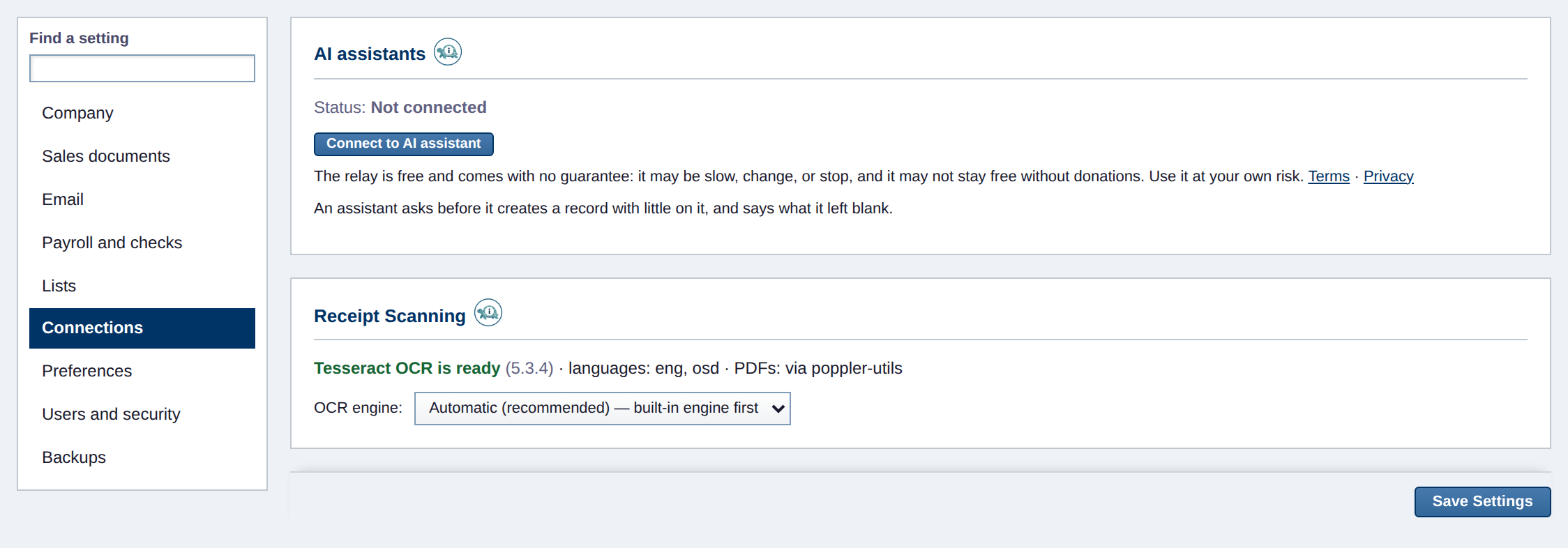
- Signed in as an administrator, open Settings → Connections and find AI assistants.
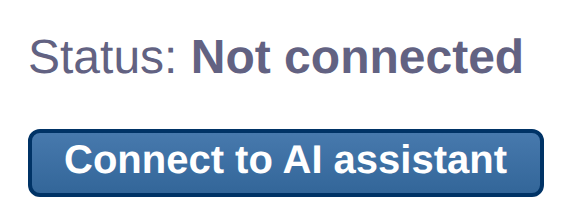
- Press Connect to AI assistant.
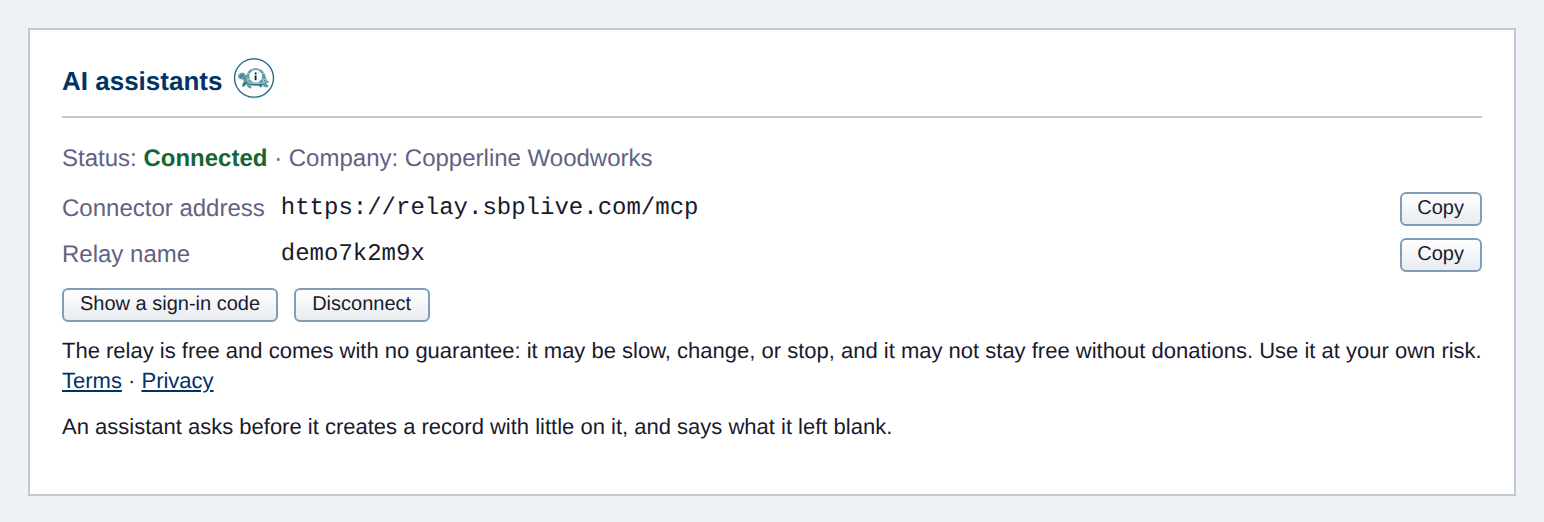
SlowBooks Pro links itself to the relay and makes an API token for the connection. The status reads Connected, and the panel shows the Connector address and the Relay name, each with a Copy button. The Connector address is what goes into the assistant in step 2.
2. In the assistant: add the connector
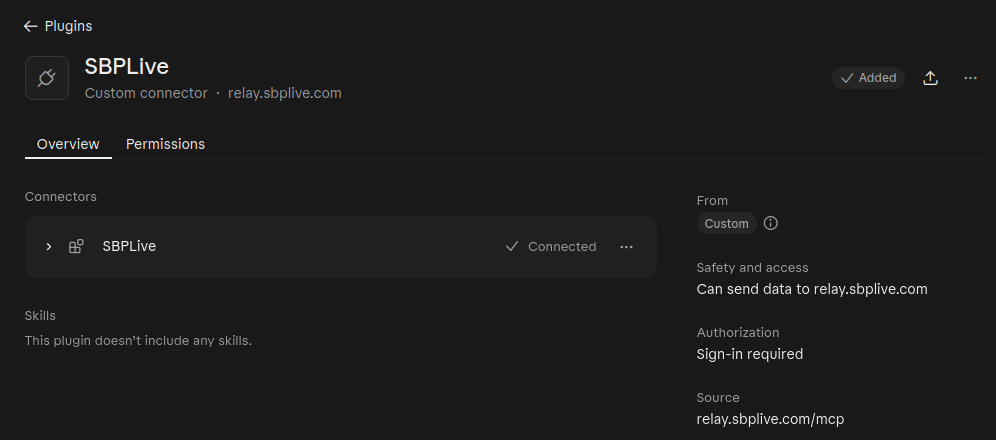
Add a custom connector with the address https://relay.sbplive.com/mcp. The name you give it is yours to choose. The assistants' own menus change; the pictures show Claude and Grok at the time of writing.
In Claude
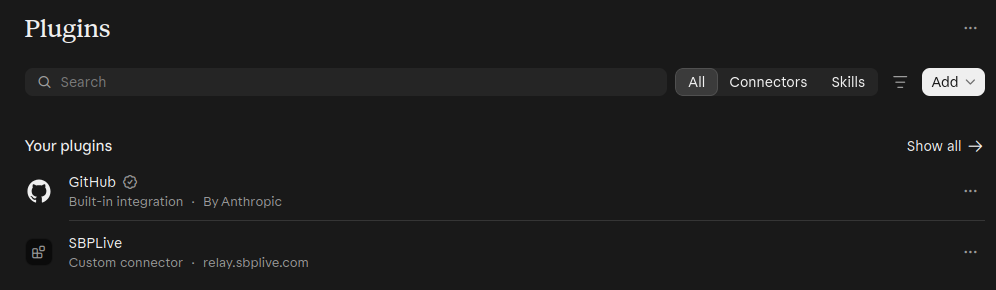
- Open Claude's Plugins page: the page headed Plugins, where Claude lists your connectors and skills. If you cannot find it, search Claude's own help for "custom connector".
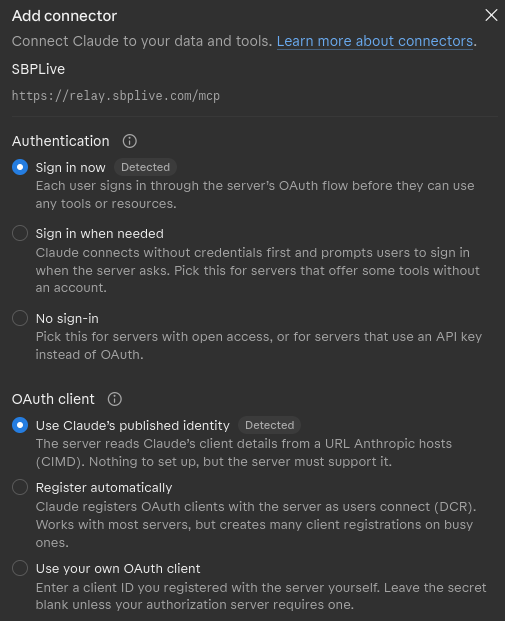
- Press Add, at the top right. The button has a small arrow beside the word: if it offers more than one thing to add, choose the one that opens the Add connector dialog, where a connector is added by its address.
- Type a name (the pictures use "SBPLive"; any name will do) and paste
https://relay.sbplive.com/mcp. - Claude marks Sign in now and Use Claude's published identity as Detected. Leave them as they are: nothing else needs choosing.
- Press Add, at the foot of the dialog. Claude then has you sign in, on the relay's sign-in page (step 3).
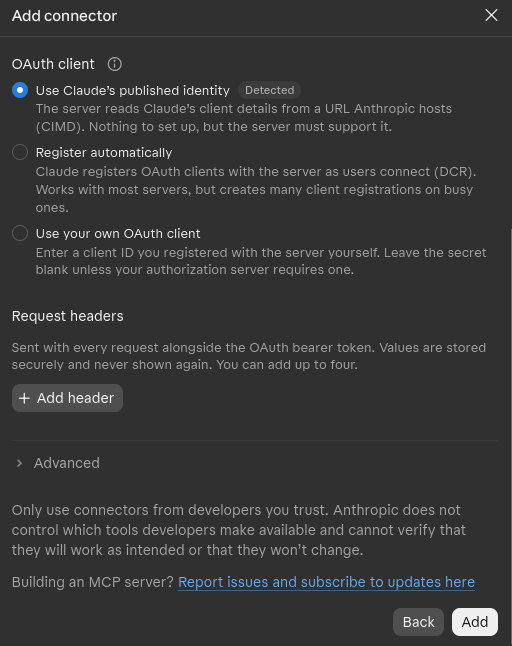
On a Team or Enterprise plan, an owner adds the connector for the organization first; each member then connects it and does step 3.
In Grok
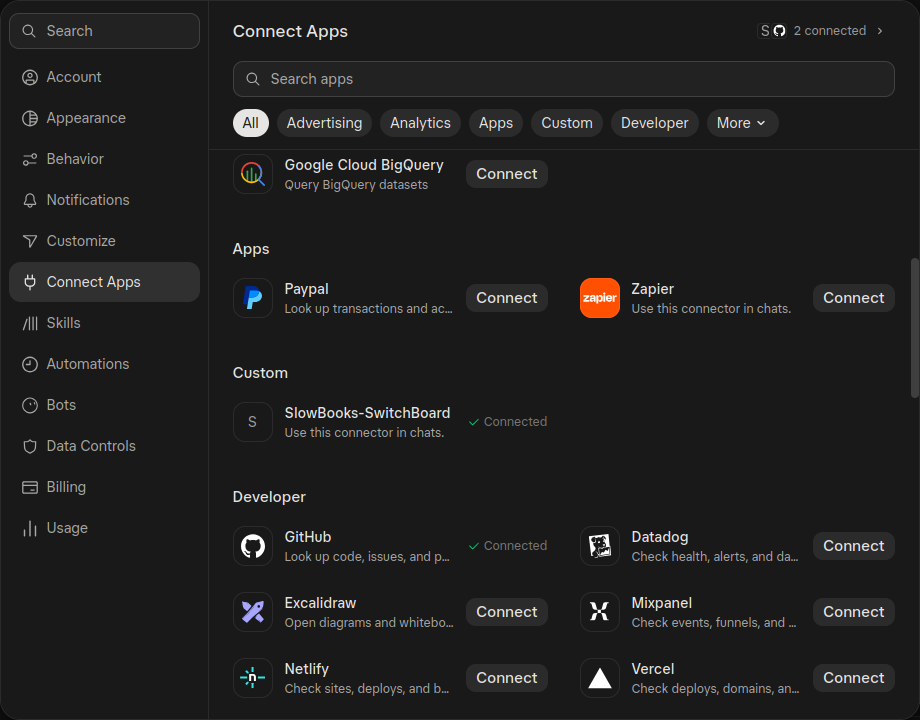
- Open Grok's settings and choose Connect Apps.
- Add a custom connector there, with the address
https://relay.sbplive.com/mcpand a name of your choosing. Custom connectors are listed under Custom. - Grok sends you to the relay's sign-in page (step 3).
There is no picture of Grok's own steps for adding a connector here; the picture of Connect Apps, with the connector in it, is under step 3.
3. Type the sign-in code
- The assistant opens the relay's sign-in page, which asks for a sign-in code.
- In SlowBooks Pro, on the same AI assistants panel, press Show a sign-in code.
- Type the code on the sign-in page and press Sign in and allow.
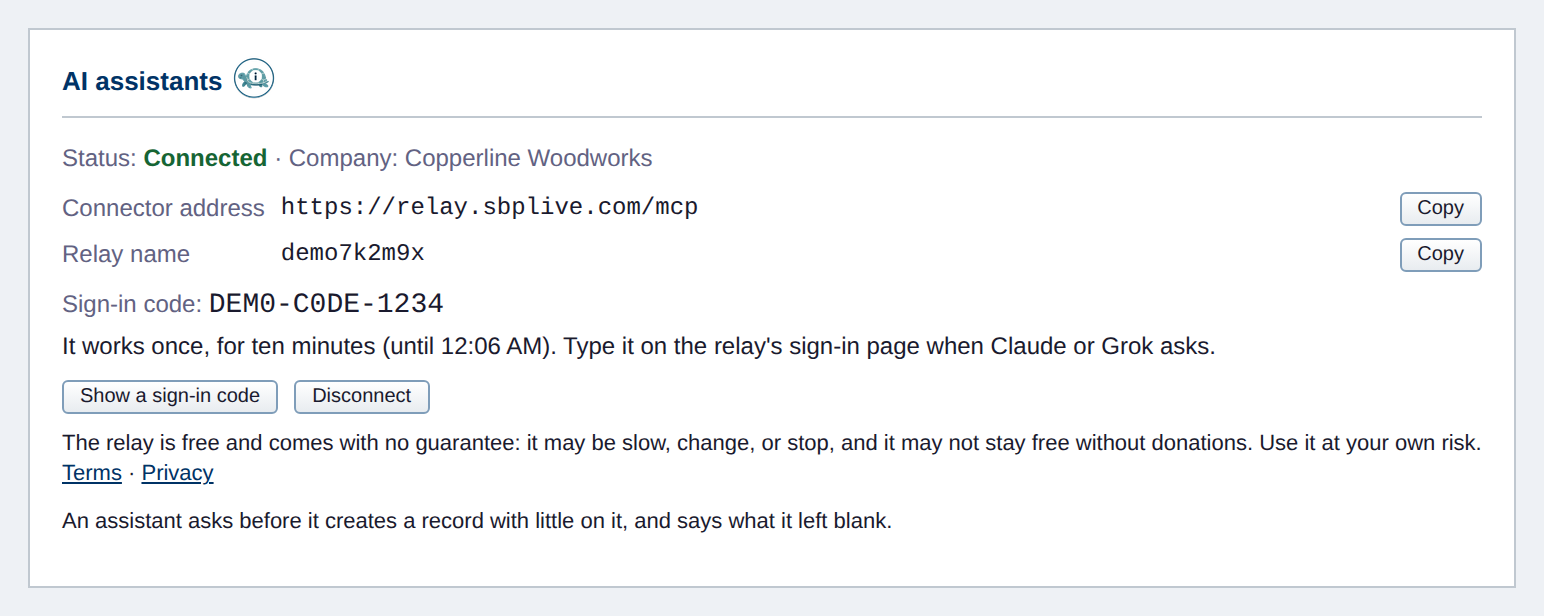
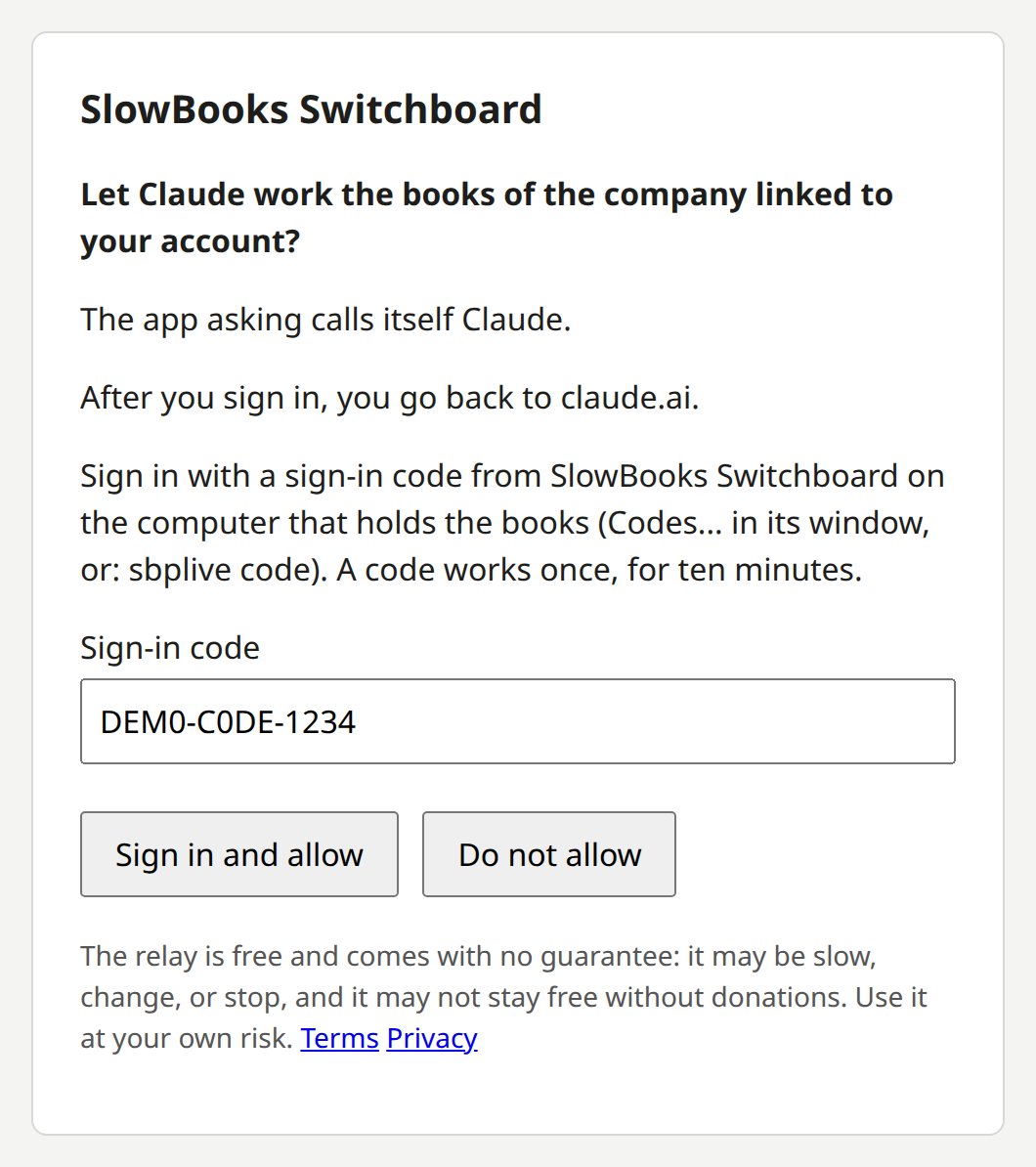
The sign-in page is headed SlowBooks Switchboard and speaks of a code from SlowBooks Switchboard. The code that Show a sign-in code gives in SlowBooks Pro is the one it wants; SlowBooks Pro's own panel says to type it on the relay's sign-in page.
A sign-in code works once, for ten minutes. Ask for a new one whenever you need it. The sign-in page names the assistant that is asking; only type a code when you started the connection yourself.
After you sign in, the assistant shows the connector as Connected.
Several companies
One connection can reach the books of several companies, up to 200. Connect once, in one company, with the steps above. Then, for each other company:
- Open that company in SlowBooks Pro, signed in as its administrator.
- Open Settings → Connections and find AI assistants. The panel offers a button named for that company, for example Add Harbor Books to the AI connection.
- Press it. SlowBooks Pro asks first: every assistant already signed in to this connection, and any signed in later, will be able to read and change that company’s books as a bookkeeper. Confirm, and the company is on the connection.
There is nothing to do in the assistant: an assistant already signed in reaches the company you added.
- Each company has its own token. Add makes a bookkeeper token in that company’s own books, so every change the assistant makes there is in that company’s audit log, as
token:AI assistant (relay)(AI assistant (relay) 2when that name is already taken there). - The assistant names the books. On every call it names which company’s books it is working in. With more than one company on the connection, a call that names none is refused, and nothing is done.
- On the desktop, only the open company answers. When the assistant asks for another company, open that company in SlowBooks Pro.
- A sign-in code reaches every company on the connection. Treat it like a master key: an assistant signed in with one can work every company listed on the panel.
- On a server, adding a company, showing a sign-in code and disconnecting take someone who is an administrator of every company on the connection. An administrator of one company alone sees only that company, not the names of the others, and can take it off with Take (the company’s name) off the AI connection. On PostgreSQL a server serves one company, so the connection reaches only that one.
- Access ends with the person who added it. If a company deactivates or demotes the administrator who added it, or that person’s sign-in reaches its end date, that company’s access ends at once. Its panel then offers Add again.
- Disconnect the AI assistant turns off every company’s token. A company that is not open then has its token turned off the next time it opens.
- A connection made in 2.32.0 beta 1 keeps working as it is, with nothing to redo. The same rule holds for it: if the assistant stopped answering after the update, the person who connected it is no longer an administrator of that company. An administrator of that company (on a server serving several companies, of every company on the connection) presses Add there again. If you go back to beta 1 after adding companies, turn off each
AI assistant (relay)token (andAI assistant (relay) 2and so on, when there are several) in Settings → Users and security → API Tokens of each added company.
SlowBooks Switchboard 1.1.0 can reach several companies on one connection too, with its add-books, books and remove-books commands.
What the assistant can do
Connect to AI assistant makes a bookkeeper API token labeled AI assistant (relay). The assistant can do what that role allows, and nothing more. SlowBooks Pro checks every request as it would a person's: the role, the closing date and every rule of the app.

| Role | What it may do |
|---|---|
| Bookkeeper (what Connect to AI assistant makes) | Read the books and enter the daily books: customers, vendors, items, invoices, bills, expenses, journal entries, payments received, bills paid, and voids. Not settings, users, API tokens, backups, payroll or HR. |
| Accountant | Read everything except payroll, HR and employee records, and post journal entries. |
| Read-only | Read the books and run reports. Change nothing. |
No API token can manage users or tokens, restore a backup, or change settings or the company file.
The assistant's tools, in plain words:
- Read: the company's name, type and closing date; one kind of record, or one record with its lines and balances.
- Find: search the books by name, number or amount.
- Reports: list the reports and run one, such as profit and loss or the balance sheet.
- Create: customers, vendors, items, invoices, bills, expenses and journal entries; receive a payment; pay a bill.
- Update and delete: change a record's fields; remove a record such as a customer or a rule. Posted documents are voided, not deleted.
- Void: an invoice, bill, expense, journal entry, payment or bill payment, with a reversing entry.
- Anything else in the API: find any operation in the app's REST API, see what it takes, and call it, always within the token's role.
It asks before a bare record. When the assistant tries to create a customer, vendor, item, employee, account, invoice, bill, estimate or purchase order with little more than a name on it, nothing is written. The assistant is told which fields are empty, as SlowBooks Pro's forms name them, and to ask you for them. It is told never to invent a value. It then creates the record with what you gave, or as it is if you say so. After every create, it hears what was left blank, so it can tell you. A document it makes takes the company's tax rate.
Payments carry a key, so a payment retried after a lost answer is booked once.
Safety
- Off until you press it. Nothing connects until an administrator presses Connect to AI assistant.
- Nothing is reachable while SlowBooks Pro is closed. On a desktop, the connection is up only while SlowBooks Pro is open; on Server Edition, while the server runs. No port is opened on your network: SlowBooks Pro dials out.
- Only someone at the books can approve. Signing an assistant in needs a one-time code from the SlowBooks Pro window.
- Every change is in the audit log as
token:AI assistant (relay). - Disconnect ends it. Disconnect the AI assistant closes the connection, turns off each company’s token, and has the relay delete its record of these books.
- Assistants make mistakes, and an assistant may act without asking you first. Review what it entered.
- What the assistant reads goes to its provider (Anthropic for Claude, xAI for Grok), under your agreement with them.

token:AI assistant (relay). The customer is invented.After Disconnect, when the relay has confirmed the deletion, SlowBooks Pro says so, and the panel reads Not connected again:

Free, with no guarantee
The relay is free and comes with no guarantee: it may be slow, change, or stop, and it may not stay free without donations. Use it at your own risk. Read the Terms of Use and the Privacy Policy before you connect.
When something is wrong
- The panel says Not connected. Press Connect to AI assistant (an administrator). If the connection was made in another company, the panel offers Add for this one instead: see Several companies.
- The panel says The relay cannot be reached, or a press answers "The relay could not be reached. SlowBooks Pro is working normally; try again in a few minutes." The books work as before. Check your internet connection and try again. A press waits ten seconds at most and leaves nothing half-made.
- The relay is busy or was just updated. The panel says so. Try again in a couple of minutes.
- The assistant says SlowBooks is not connected. SlowBooks Pro is closed, or still connecting. Open it and try again in a few seconds.
- The sign-in page refuses the code. Codes work once, for ten minutes. Press Show a sign-in code for a new one. Ten wrong codes lock the address out for ten minutes.
- The relay no longer accepts this link. Press Disconnect the AI assistant, then Connect to AI assistant again.
- Disconnect could not reach the relay. SlowBooks Pro says what was done and what was not. The relay name stays on the panel, and SlowBooks Pro keeps trying to remove the relay's record itself; if you ever need to ask support about it, send the relay name. If the relay answered that it is busy, nothing was undone: press Disconnect the AI assistant again.
- The assistant shows no SlowBooks tools. Remove the connector in Claude or Grok, add it again with the same address, and sign in with a new code.
- It did something you did not want. Look it up in the audit log under
token:AI assistant (relay), and correct or void it in SlowBooks Pro. To stop the assistant at once, press Disconnect the AI assistant.
Support
Email support@slowbookspro.com. Say which assistant you use and what the panel says. Never send a sign-in code, an API token or a file from your data folder.